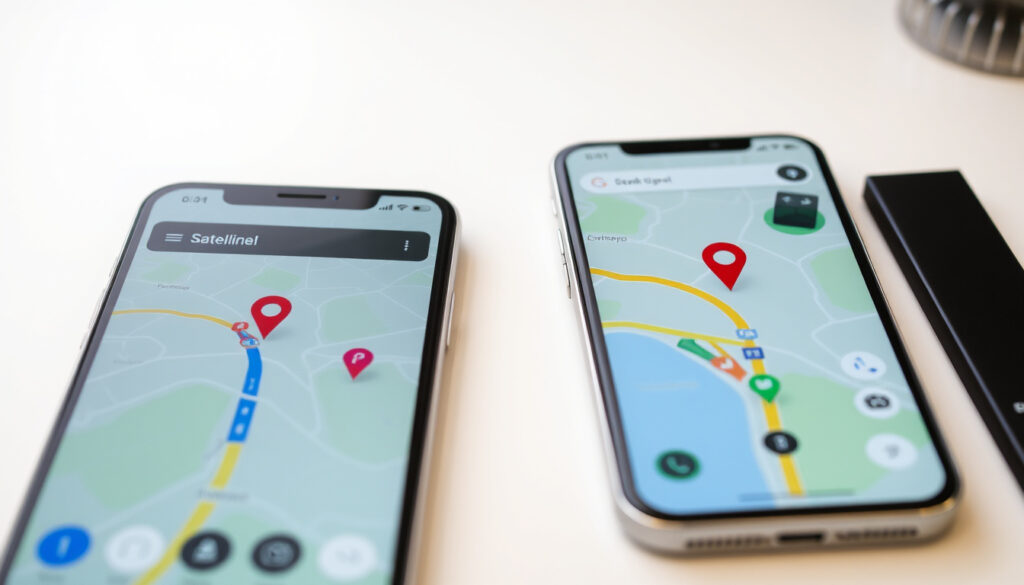
How to Fix GPS Not Working on Android & Phone: Quick Steps
Few things cut a road trip short faster than a phone that can’t figure out where it is. GPS problems rank among the top reasons people reach out to Samsung and Google support, and the fix is often embarrassingly simple — a restart, a permission toggle, or moving a few feet away from a concrete wall. This guide walks through what actually works, based on official manufacturer steps and what real users report back.
First fix tried by users: Restart device ·
Key setting checked: Location permissions ·
Common app adjustment: Allow all the time ·
Google recommendation: Turn on location accuracy ·
Samsung step: Settings > Location > App permission
Quick snapshot
- Restart resolves many cases (Aware360 Help)
- Location permissions require “Allow all the time” setting (Samsung Africa Support)
- Google recommends turning on location accuracy (Samsung Latin Support)
- Specific phone cases that block GPS (varies by model)
- Whether cache clearing helps on all Android versions
- Third-party GPS tools’ long-term reliability
- Android 10+ changed permission model (2019)
- Samsung continues GPS support updates across Galaxy lineup
- Try official steps first, then third-party diagnostic tools
- Factory reset is last resort if all else fails
The fixes break down into three tiers, ordered from simplest to most invasive.
| Fix | Action | Source |
|---|---|---|
| Top fix | Restart device | Aware360 Help |
| Permission setting | Allow all the time | Samsung Africa Support |
| Google step | Turn on location accuracy | Samsung Latin Support |
How to troubleshoot GPS problems on Android devices?
Samsung and third-party support teams field this question constantly. The good news is that most GPS failures stem from a handful of fixable causes: a stale location cache, a permission that’s been switched off, or a network connection that needs resetting. Here’s where to start.
Restart your device
A simple restart clears temporary glitches that can freeze GPS functionality. Samsung’s official guidance recommends this as the first troubleshooting step when GPS stops responding on Galaxy devices, according to their support documentation. Power the device off completely, wait ten seconds, then turn it back on before attempting to use navigation again.
Check location settings
Navigate to Settings > Location and verify that location services are enabled. From Android 10 onward, apps require explicit GPS permission, and it’s easy to accidentally deny access when prompted during a software update. Samsung Latin Support notes that checking app-level permissions resolves many reported GPS issues.
Toggle airplane mode
Switching airplane mode on and off forces the device to renegotiate its network connections, which can reset a stuck GPS. Aware360 Help recommends this as a quick troubleshooting step when location services appear active but fail to pinpoint your position.
Network resets often fix GPS when the phone shows a signal but can’t lock onto satellites. For drivers relying on real-time navigation, this 30-second step can mean the difference between arriving on time or getting lost.
How can I reset my GPS on my phone?
When basic restarts don’t cut it, a deeper reset of location services often does. Android stores GPS data in system cache files, and clearing those can restore satellite locking ability that routine restarts miss.
Reset location settings
Access your phone’s location settings and look for an option to reset or clear GPS state. Samsung recommends navigating through Settings > Location to manage these settings directly. Some carriers and phone models offer a dedicated “Reset GPS” button in developer or location diagnostic menus.
Clear cache for GPS apps
Open Settings > Apps > Maps (or your preferred navigation app) > Storage & Cache and clear the cache. Carlcare, a third-party repair and support network, identifies this as a reliable fix when GPS appears stuck on a previous location or fails to update in real time. Clearing cache forces the app to rebuild its location data from scratch.
The implication: cache clearing works because stale location data can persist even after restarting the app.
Why is my GPS not picking up my location?
If your phone knows location services are on but can’t determine where you are, the problem typically comes down to three things: accuracy settings, environmental interference, or compass calibration drift. Each has a straightforward fix.
Enable location accuracy
Samsung instructs users to enable Google Location Accuracy in Settings > Location to improve GPS precision by supplementing satellite data with Wi-Fi and Bluetooth scanning. This setting uses nearby networks to triangulate position when satellite signals are weak, which is particularly useful in urban areas with tall buildings or underground parking.
Calibrate compass
A miscalibrated compass can throw off location reporting even when satellite reception is solid. Samsung Africa Support recommends moving to an open outdoor area and performing a figure-eight motion with the phone to recalibrate. Compass drift accumulates over time and after software updates, so calibration is worth adding to your regular maintenance routine.
Wi-Fi and Bluetooth scanning for location accuracy trades some privacy for precision. Users concerned about background scanning should weigh whether the improved navigation reliability is worth keeping these radios active.
What this means: enabling location accuracy fills the gap when satellites can’t deliver alone.
How do I get my GPS working on my phone?
Getting GPS working again often means working through a checklist of settings, permissions, and environmental factors. The steps below cover what both manufacturers and experienced users confirm works.
Update apps and system
Running outdated navigation apps or an older Android version can cause GPS incompatibilities. Samsung recommends checking for software updates via Settings > Software update > Download and install. App stores typically prompt for navigation app updates, but manually verifying ensures you’re on the latest version with current GPS protocols.
Check for signal blockers
Physical barriers and electronic interference are common culprits. Samsung’s troubleshooting guide advises moving outdoors and away from obstacles when GPS fails, noting that poor weather conditions and dense building materials can weaken satellite signals. Aware360 Help adds that certain phone cases — particularly those with metal or magnetic components — may interfere with GPS antenna reception.
The pattern: environmental and hardware factors often matter more than software settings.
Why is my GPS suddenly not working?
Sudden GPS failures usually trace back to recent changes: a software update altered permissions, a setting got toggled, or a hardware issue developed. Understanding which change occurred most recently narrows down the fix fast.
Software glitches
After major Android updates, GPS sometimes needs a clean restart to reinitialize properly. Aware360 Help recommends power cycling the device when GPS fails following a software change. Samsung’s troubleshooting documentation for Galaxy devices supports this approach, noting that force-restarting can resolve post-update GPS issues when standard reboots don’t.
Hardware interference
Power saving mode can restrict GPS to conserve battery, which some users report causes sudden location dropouts. Aware360 Help specifically identifies disabling power saving mode as a troubleshooting step when GPS stops working without other apparent cause. If the issue persists across multiple restarts, a hardware problem — potentially related to the GPS antenna or associated components — may require professional service.
The catch: power saving restrictions are easy to overlook when hunting for GPS causes.
Upsides
- Most fixes require no apps or tools
- Restart and permission toggles resolve the majority of cases
- Official Samsung and Google guidance is freely available
- Third-party diagnostic apps can reset A-GPS state
Downsides
- Some phones block GPS with hardware configurations
- Power saving mode restrictions aren’t always obvious
- Third-party GPS tools may not work reliably on all Android versions
- Factory reset wipes data — backup first
Related reading: Garbage Disposal Not Working
Frequently asked questions
How to get GPS signal back?
Start with the simplest fixes first: restart your device, then check that location permissions are set to “Allow all the time” for your navigation apps. If GPS still doesn’t lock, toggle airplane mode on and off to reset network connections, then try enabling Google Location Accuracy in your location settings.
Why is my GPS not working in my car?
Car interiors can block GPS signals, especially with tinted windows containing metallic particles or if the phone sits too far from a windshield. Move your phone closer to the glass and ensure no metal objects are directly between the device and the sky. Some dashboard mounts also interfere — trying a different placement often helps.
What device blocks GPS signal?
GPS jammers are illegal in most countries but can disrupt navigation temporarily if encountered. More commonly, phone cases with metal components, thick protective covers, or magnetic mounts interfere with GPS antenna reception. Removing the case and repositioning the phone typically resolves these interference issues.
Why does my Samsung phone keep saying GPS signal lost?
Samsung devices display “GPS signal lost” when the phone can’t maintain satellite contact. Samsung’s official troubleshooting guide recommends first checking app permissions (Settings > Location > App permission), then enabling Wi-Fi and Bluetooth scanning for better accuracy. If the message persists, restart the device and try using GPS in an open outdoor area away from tall buildings.
Why is GPS not working today?
GPS outages affecting all users in an area are extremely rare and typically stem from satellite maintenance or geomagnetic interference — neither of which individual users can fix. More commonly, your GPS appears non-functional due to a local issue: permission changes after a software update, a stale cache, or simply being indoors or surrounded by signal-blocking materials.
Why is my GPS not working properly on iPhone?
While this guide focuses on Android, iPhone users should check Settings > Privacy > Location Services, ensure your maps app has permission, and consider resetting location settings via Settings > General > Transfer or Reset iPhone > Reset > Reset Location & Privacy. Apple Support provides detailed guidance for iOS-specific GPS issues.
How to get GPS back on my phone?
Work through this sequence: (1) restart the device, (2) verify location permissions are set to “Allow all the time” for your navigation app, (3) enable location accuracy in settings, (4) toggle airplane mode to reset network connections, and (5) clear the cache for your maps app. If none of these work, try a dedicated GPS diagnostic app to reset A-GPS state, or reset all location settings as a last step before considering a factory reset.
Restart your Android device and try using the GPS again.
— Aware360 Help (Location troubleshooting guide)
Go to Settings > Location > App permission > Allow all the time.
— Samsung Africa Support (Galaxy GPS troubleshooting)
Turn On Location Accuracy for better GPS precision.
— Samsung US Support (Location accuracy settings)
For Android users, the path forward is straightforward: work the official checklist before reaching for anything else. Restart, check permissions, enable accuracy, reset networks. Those four steps handle the vast majority of GPS failures, and they take under two minutes. Third-party diagnostic tools and factory resets exist for the stubborn cases, but most people never need to go that far.
More related posts
 Bengals vs Broncos Match Player Stats: 2025 Recap
 The Last Thing He Told Me: Worth Watching? Season 2 Update
 Take Care of Maya Verdict Overturned: Full Update
 What Is a Function in Math? Definition & Examples
 Real Madrid Lineups vs Juventus: Starting XI, Result, Injuries
 Methylene Blue: Uses, Safety, and Risks Explained
 Alice in Borderland Cast: Complete Guide to Every Season & Character